QR Code Access

QR Code Access
The QR Code feature allows students to quickly share assessment access with preceptors during clinical encounters.
Select the QR Code button at the top of the dashboard to generate a QR code linked to your current rotation.
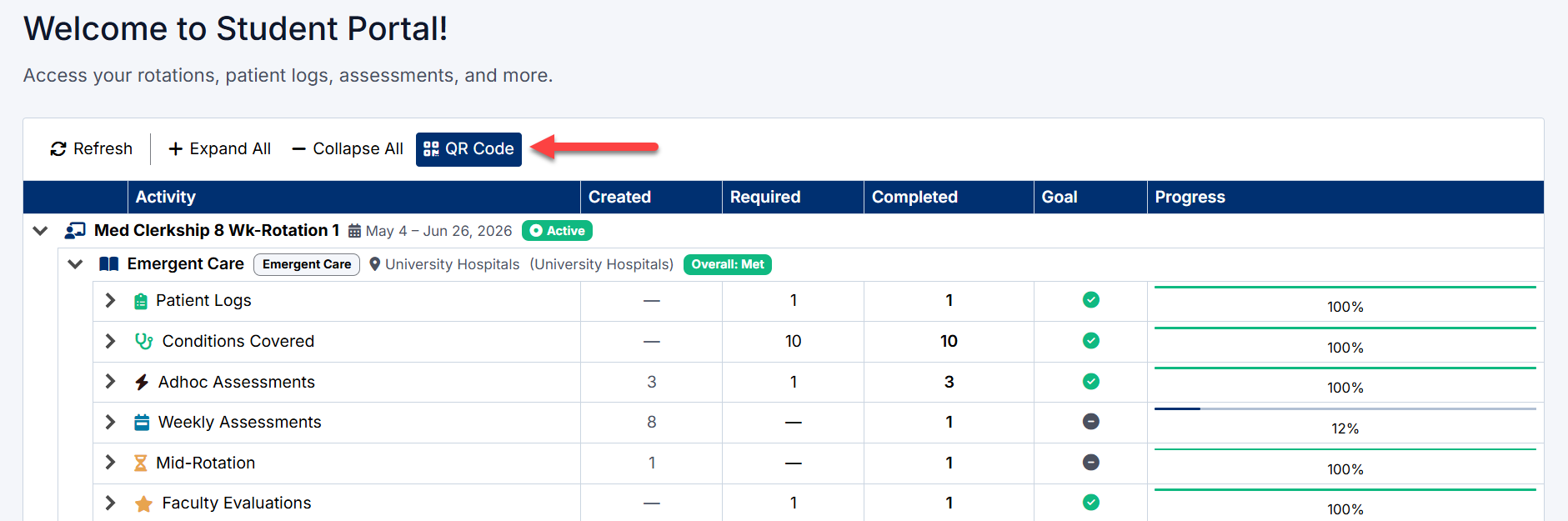
Selecting a Rotation
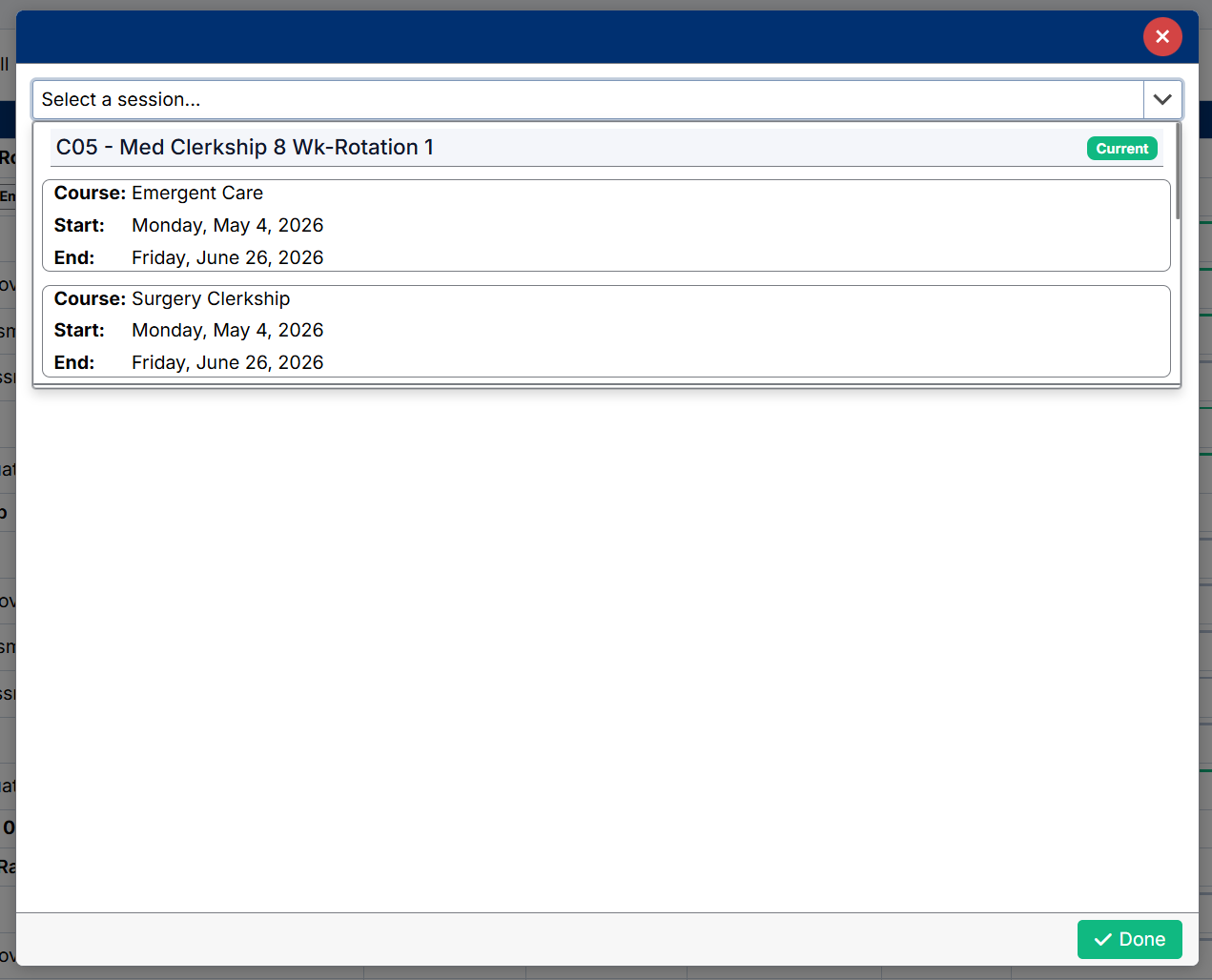
After selecting the QR Code button, a QR Code window will open.
Use the session drop-down list to select the rotation and course you would like to use.
The window displays:
- Rotation/session name
- Course name
- Rotation start and end dates
- Current session status
Sharing the QR Code
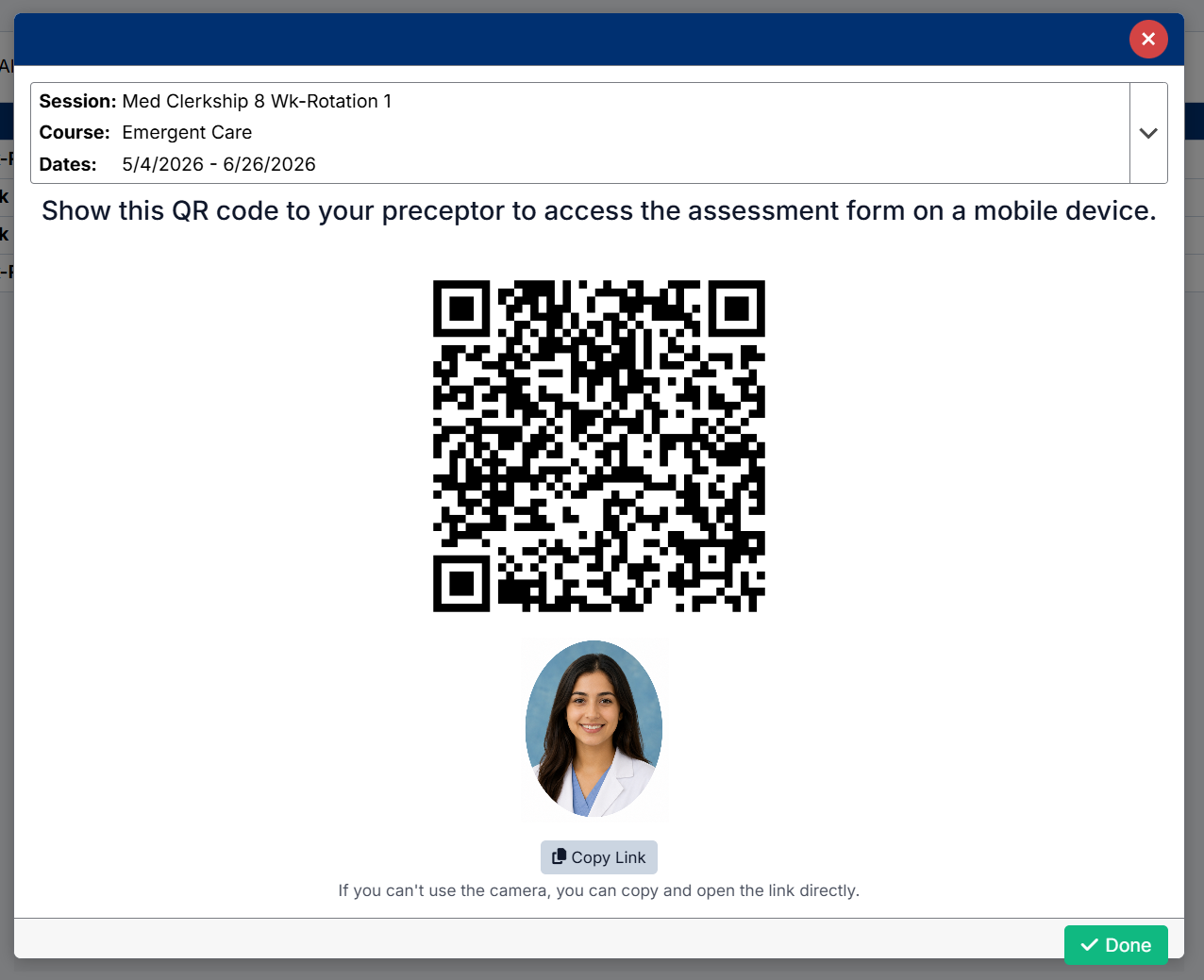
Once a rotation is selected, the system generates a unique QR code for that rotation.
Show this QR code to your preceptor during the encounter so they can quickly access the assessment form on their mobile device.
The QR Code screen also includes:
- Rotation details
- Your student profile image
- A Copy Link option if the preceptor is unable to scan the code
Using the QR Code Effectively
The QR Code feature helps streamline assessment requests during clinical activities by allowing preceptors to:
- Access assessment forms immediately
- Complete assessments from a mobile device
- Avoid manually searching for the student or rotation
Best practices:
- Open the QR code before or during the encounter
- Confirm the correct rotation is selected
- Use the Copy Link option if scanning is unavailable
- Ensure the preceptor submits the assessment after completion
Created with the Personal Edition of HelpNDoc: Powerful and User-Friendly Help Authoring Tool for Markdown Documents