Student Dashboard
Student Dashboard
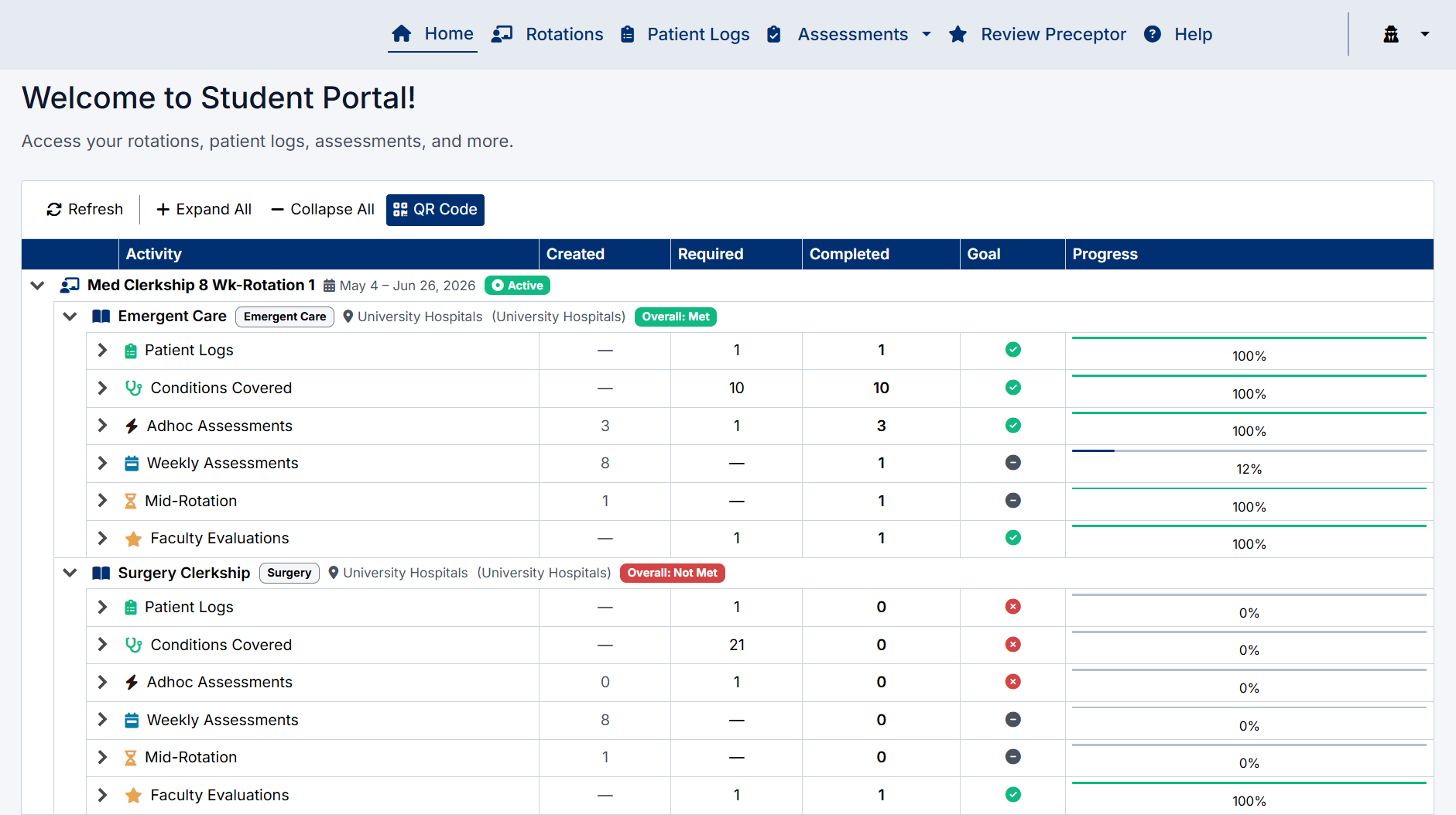
The Student Dashboard is your central hub for managing clinical activities, monitoring rotation progress, and accessing key areas of the Student Portal.
From the dashboard, you can:
- View active and upcoming rotations
- Track completion of rotation requirements
- Monitor patient logs and core conditions
- Access assessments and evaluations
- Review your progress throughout each clerkship
- Generate QR codes for preceptor assessments
The dashboard provides real-time progress tracking across all assigned rotations and disciplines, helping you stay organized and ensure all program requirements are completed on time.
Use the expandable dashboard sections to quickly navigate between activities and review detailed progress information for each rotation.
Available Navigation Options
The navigation bar at the top of the screen provides quick access to all major areas of the Student Portal.
Home
Returns you to the main dashboard.
Rotations
View your assigned rotations and rotation details.
Patient Logs
Create, review, and manage patient encounter logs.
Assessments
Access assessment-related pages including:
- Adhoc Assessments
- Weekly Assessments
- Mid-Rotation Assessments
Review Preceptor
Complete faculty/preceptor evaluations.
Help
Access user guides, quick reference guides, and support resources.
User Menu
The user menu is located in the top-right corner of the navigation bar.
From this menu, you can:
- View your logged-in account information
- Logout of the Student Portal

Clerkship Completion Requirements
Each rotation includes required activities and core clinical conditions that must be completed throughout the clerkship.
Requirements may include:
- Patient logs
- Required conditions
- Assessments
- Faculty evaluations
Once all rotation requirements have been successfully completed, the Clerkship Director may create the End-of-Rotation Assessment.
Best Practices
To stay on track throughout your rotation:
- Review your dashboard regularly
- Monitor progress percentages frequently
- Keep patient logs up to date
- Submit weekly and adhoc assessments promptly
- Ensure required conditions are covered early in the rotation
- Complete faculty evaluations before rotation end dates
- Use the QR Code feature during encounters for faster assessment access
Created with the Personal Edition of HelpNDoc: Easy to use tool to create HTML Help files and Help web sites