Create Patient Logs

Create Patient Logs
To record a new patient encounter:
- Click New Log.
- The Patient Log form will open.
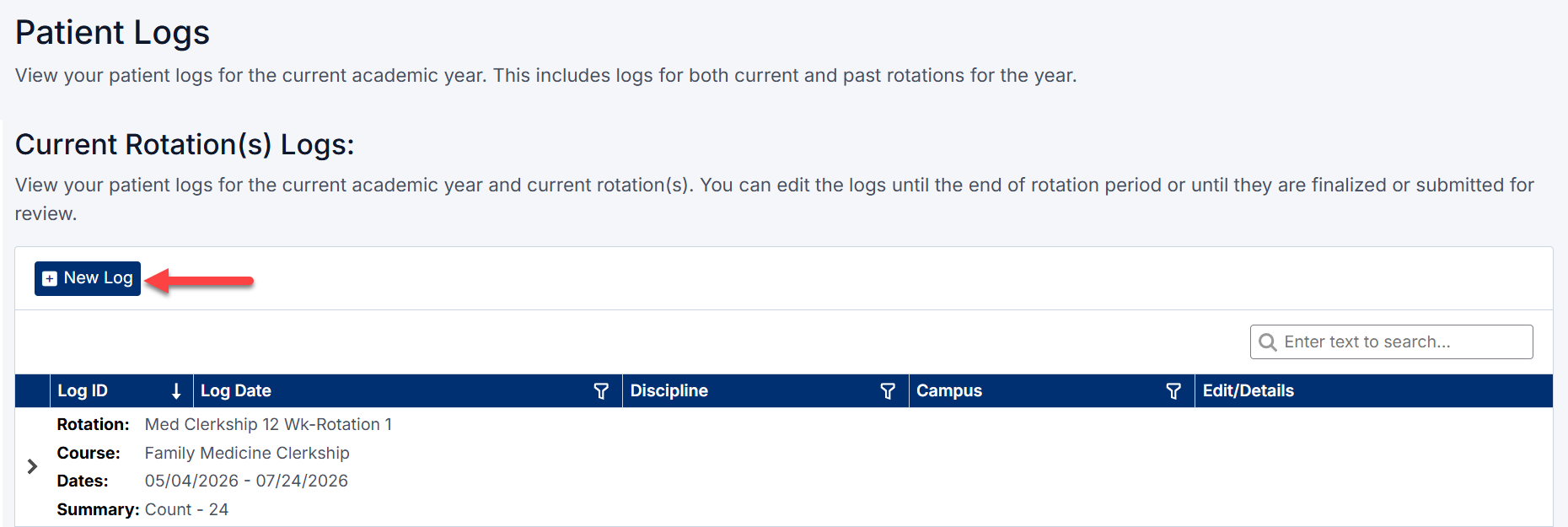
Create Patient Log screen
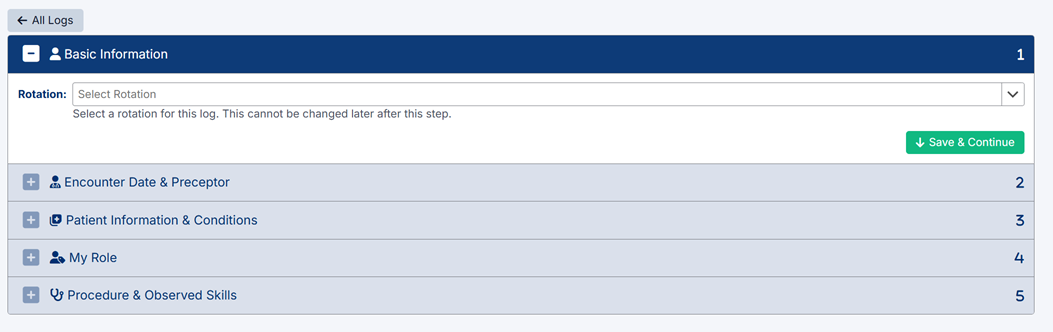
Step 1: Basic Information
Select the rotation associated with the patient encounter.
- Rotation – Choose the correct rotation for this log
Once selected, the system will automatically populate:
- Discipline
- Campus
- Campus Location
You will also be required to select a Setting:
- Setting – Choose the appropriate clinical setting for the encounter
Click Continue to proceed.
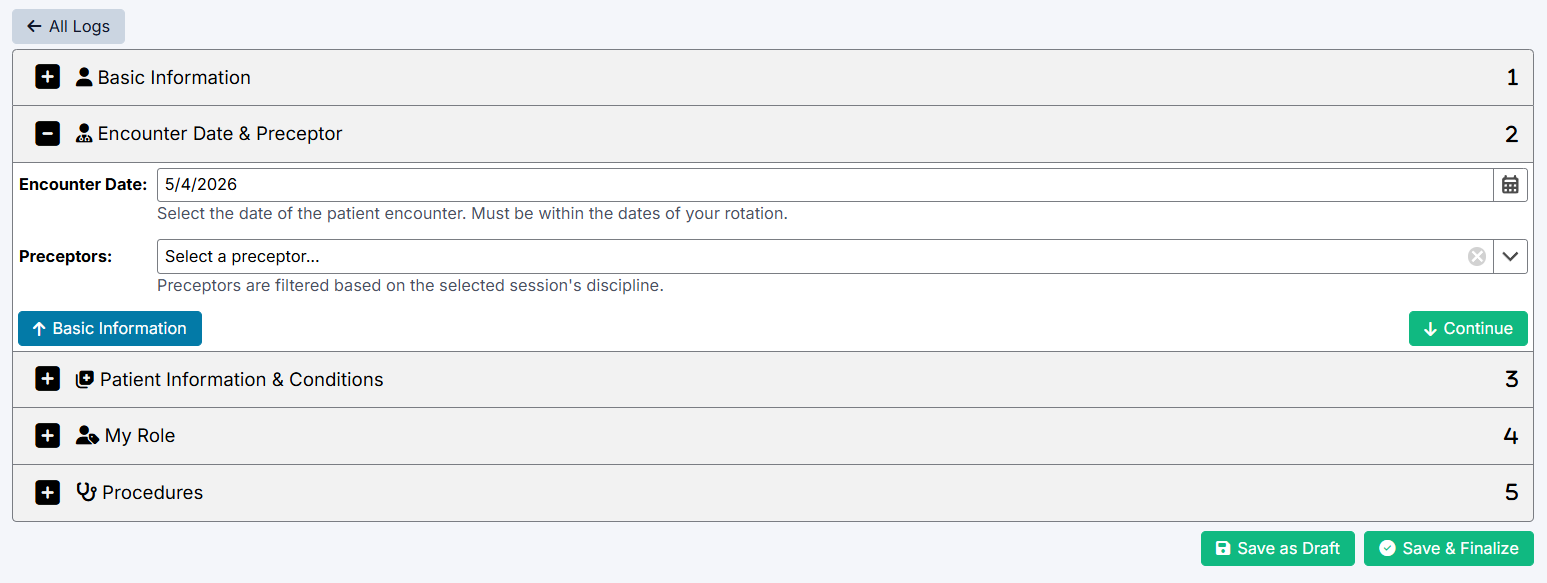
Step 2: Encounter Date & Preceptor
Enter details about the encounter:
• Encounter Date – Select the date of the patient interaction
Must fall within your rotation dates
• Preceptors – Select one or more preceptors involved in the encounter
Preceptors are filtered based on the selected rotation
Multiple preceptors can be selected for a single encounter
Note: Weekly and Ad-hoc assessments can still be requested and completed without associated patient logs in cases where specific clinical conditions were not encountered.
Click Continue to proceed.
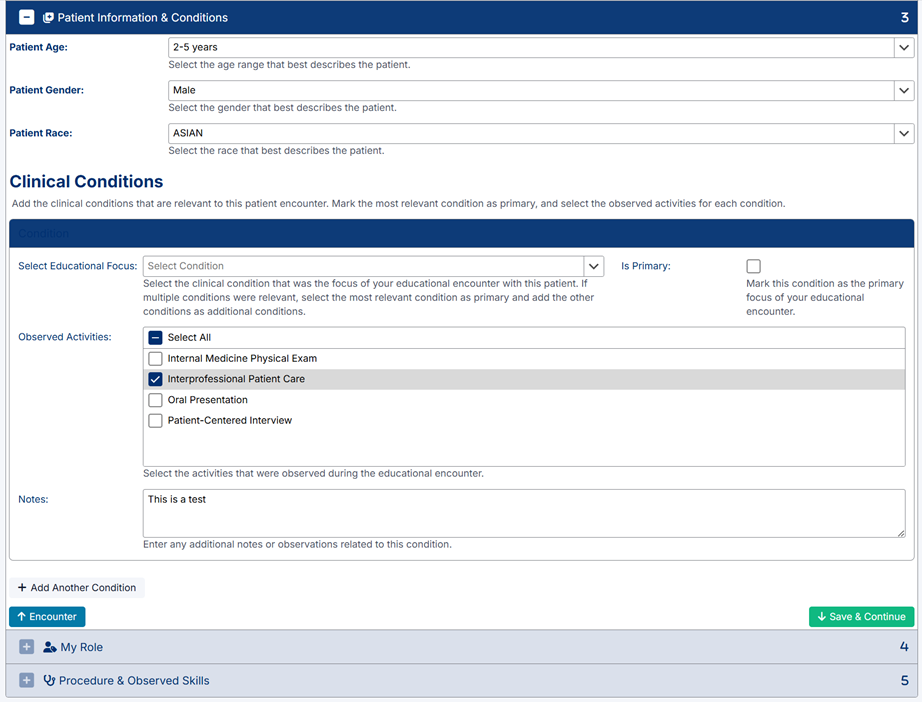
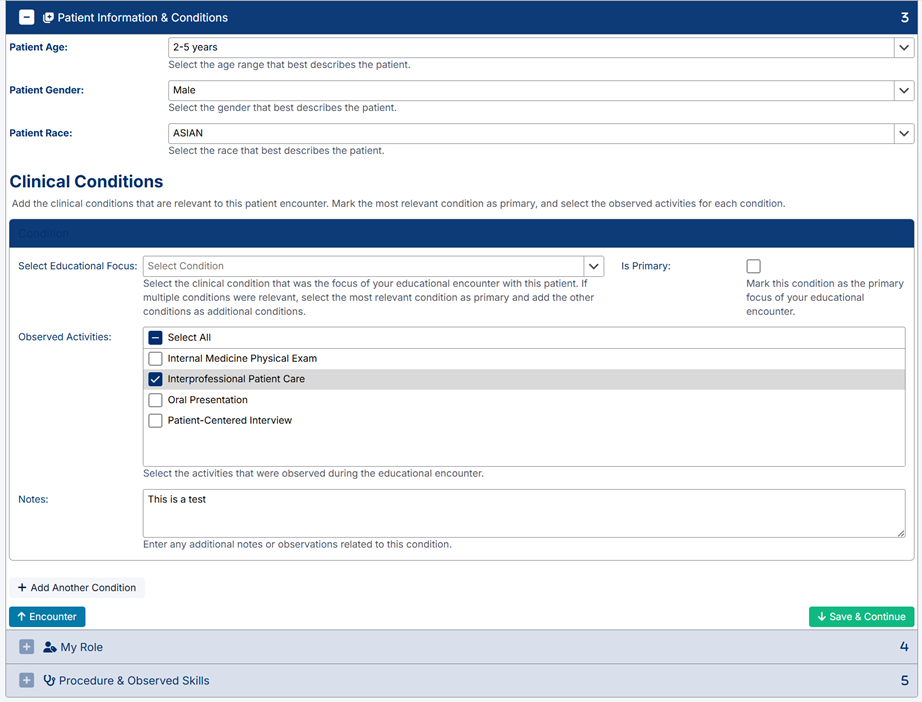
Step 3: Patient Information & Conditions
Enter patient-related details:
- Patient Age
- Patient Gender
- Patient Race
Clinical Conditions
- Select the primary condition related to the encounter
- Add additional conditions if applicable
- Select observed activities for each condition if required for your discipline. (Note: None will be visible if none are required)
- Add notes if needed
Click Continue to proceed.
Step 4: My Role
Describe your role in the patient encounter.
This helps provide context for your level of involvement during the clinical activity.
Click Continue to proceed.
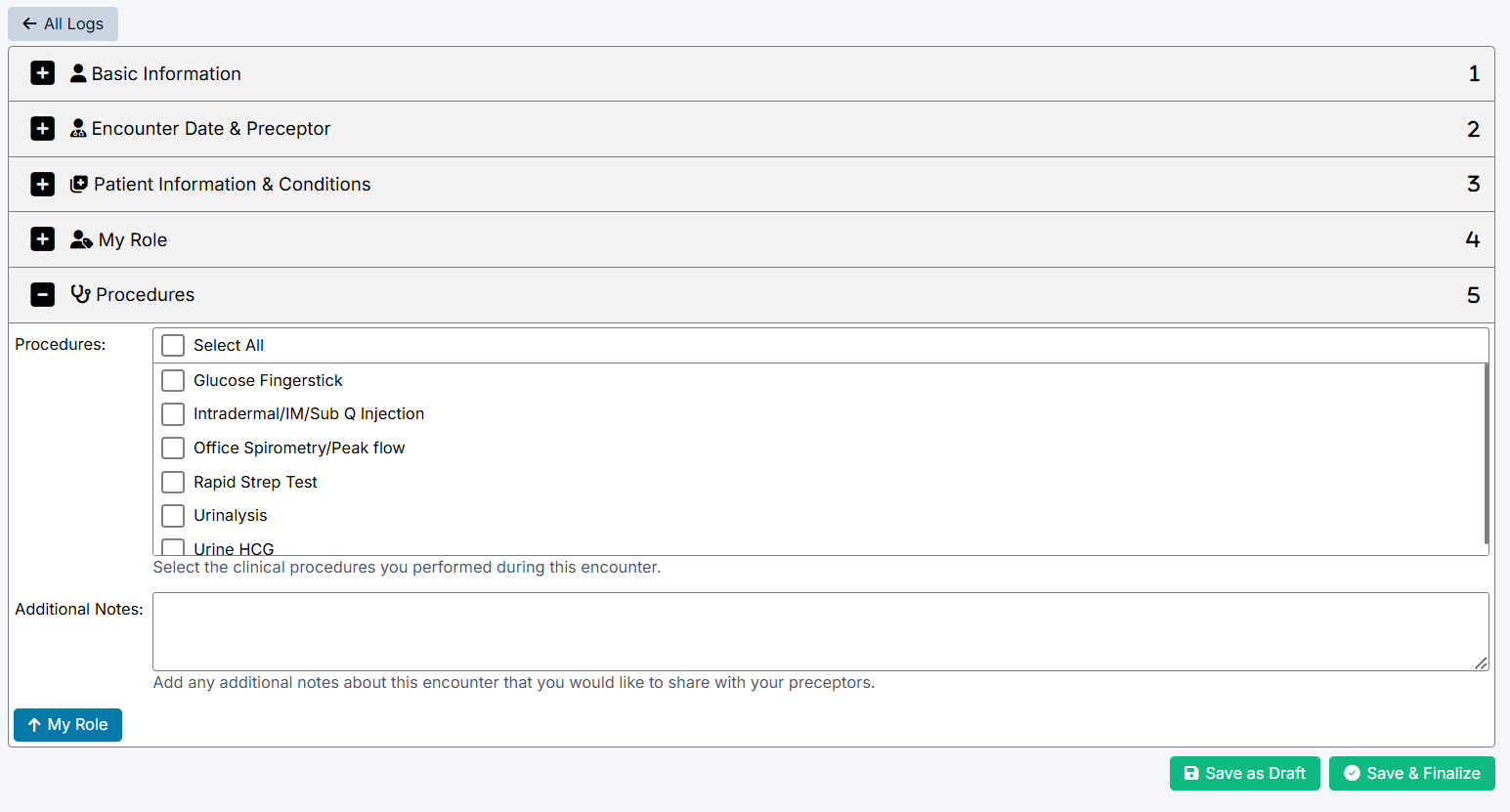
Step 5: Procedure
Record the procedures associated with the encounter:
- Procedures – Select procedures you performed
- Additional Notes – Enter any relevant observations
Click Save & Finish to complete the log.
Click Save as Draft should you wish to complete at a later date
Step 6: Saving and Finalizing the Log
After saving:
- You will receive a confirmation that the log has been saved
- You may choose to return to the list or view the log
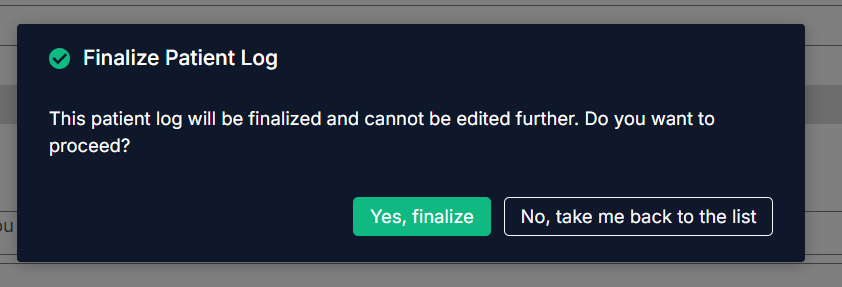
When finalizing:
- The log will be locked and cannot be edited further
- Confirm by clicking Yes, finalize
Important Notes
- Patient logs must be completed accurately to ensure correct assessment distribution
- Logs can be edited until they are finalized
- Once finalized, logs cannot be changed
- Preceptors selected in logs are used for generating assessments
Created with the Personal Edition of HelpNDoc: Make your documentation accessible on any device with HelpNDoc