View Patient Logs

View Patient Logs
All patient logs are displayed and grouped by:
- Rotation
- Course
- Rotation Dates
Each group includes a summary count of logs completed.
Within each group, you will see a list of logs with key information:
- Log ID
- Log Date
- Discipline
- Campus
To view a log in detail:
- Locate the desired log in the list
- Click Details

Edit Patient Log
A detailed view will open, showing:
- Session and rotation information
- Encounter date and selected preceptors
- Patient demographics
- Clinical conditions and observed activities
- Any notes recorded for the encounter
This view provides a complete, read-only summary of the patient encounter.
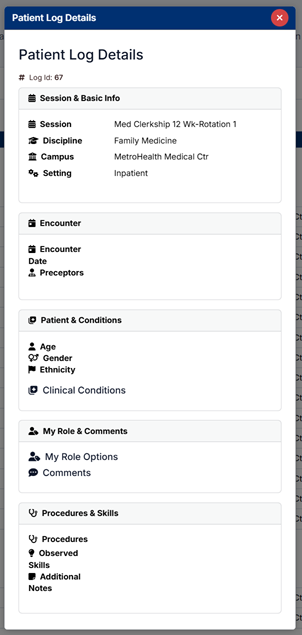
Patient Log Details
Editing Patient Logs
You can edit patient logs that have not yet been finalized or submitted.
To edit a log:
- Locate the log in the list
- Click Edit
You will be taken through the Patient Log creation process, where you can:
- Update encounter details
- Modify patient information and clinical conditions
- Adjust selected activities, procedures, and notes
The editing process follows the same steps as creating a new patient log, ensuring all required information is completed correctly.
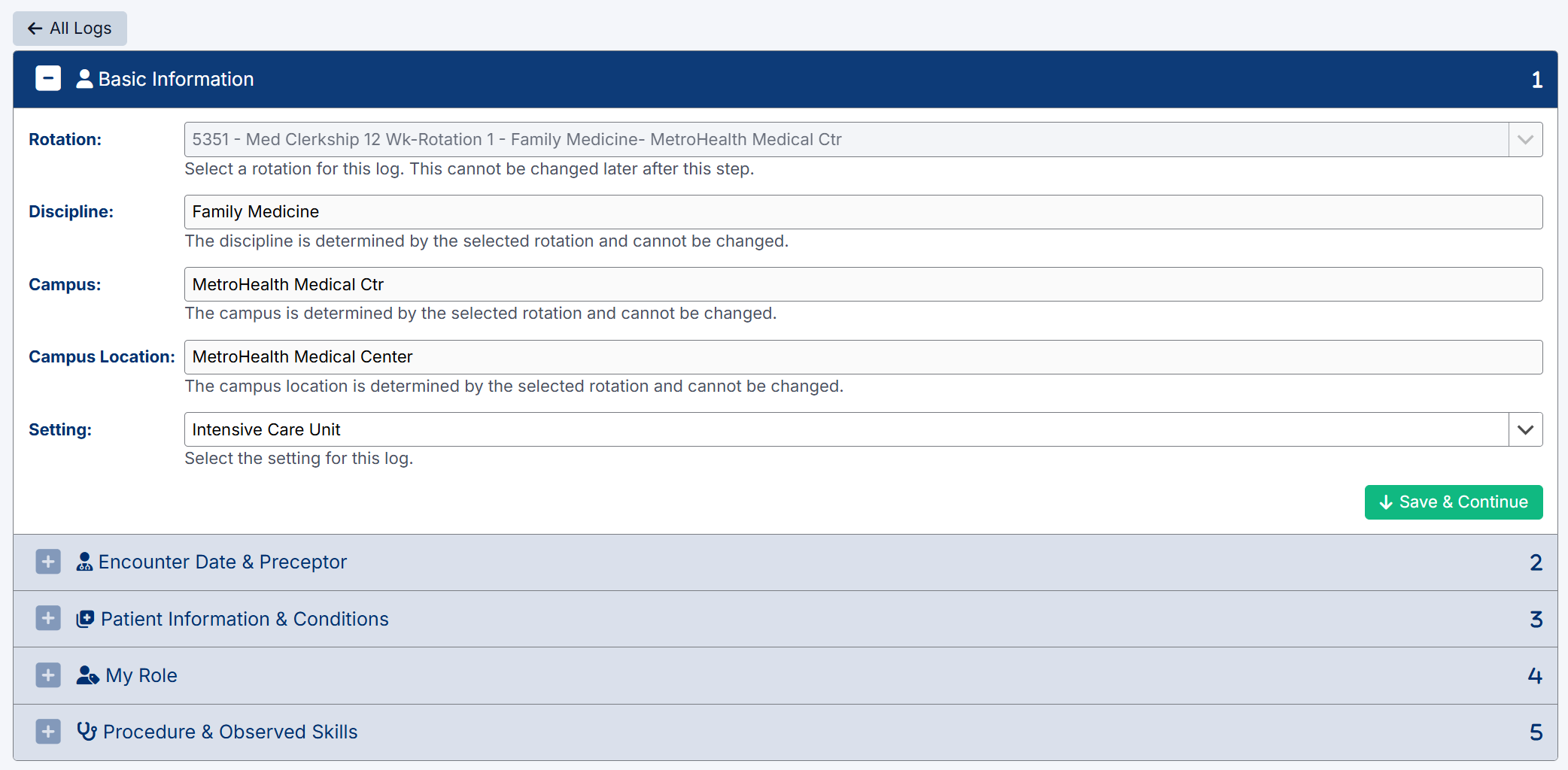
Edit Patient Log screen
Created with the Personal Edition of HelpNDoc: Free CHM Help documentation generator