Patient Logs

Patient Logs Overview
The Patient Logs feature allows you to record and manage your clinical encounters throughout your rotations. These logs are used to track your experience and ensure you meet the required clinical conditions for your program.
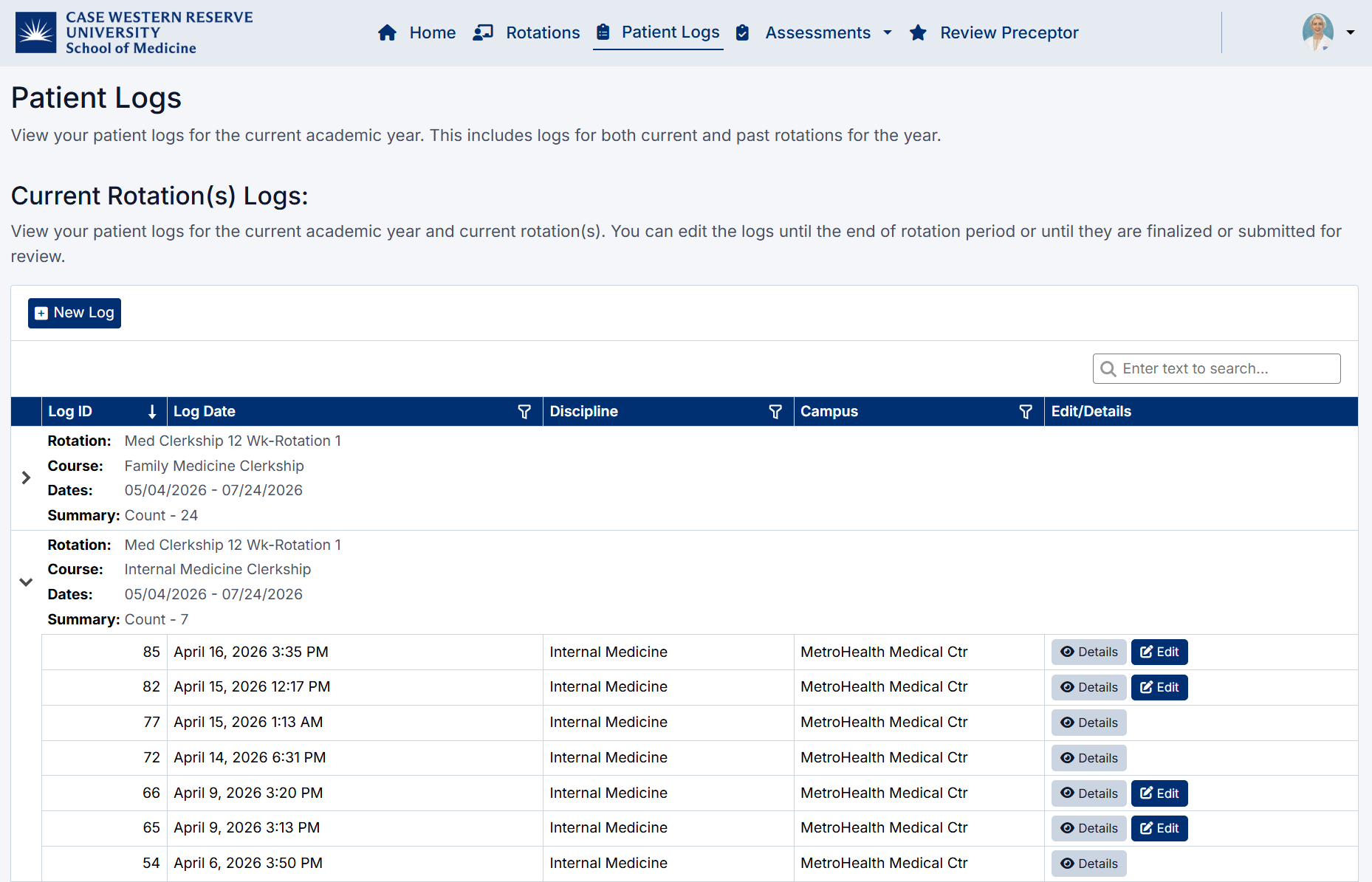
Patient Log Dashboard
Accessing Patient Logs
To access your patient logs:
- From the main navigation bar, click Patient Logs.
- You will be directed to the Patient Logs page, where you can view, create, and manage your patient encounters for the academic year.
This page includes logs from both your current and past rotations, allowing you to track your clinical activity in one place.

Patient Log Navigation
Understanding the Patient Logs Page
This page displays all patient logs associated with your current and past rotations for the academic year.
Logs are grouped by:
- Rotation
- Course
- Rotation Dates
Each group includes a summary count of logs completed within that rotation.
Key Features
- New Log
Click + New Log to create a new patient encounter. - Log List
View all recorded patient logs, including: - Log ID
- Log Date
- Discipline
- Campus
- Details
Click Details to view a full summary of a completed patient log, including: - Session and rotation information
- Encounter details
- Patient demographics
- Clinical conditions and observed activities
- Edit
Click Edit to update an existing log.
Note: Only logs that have not been submitted or finalized can be edited.
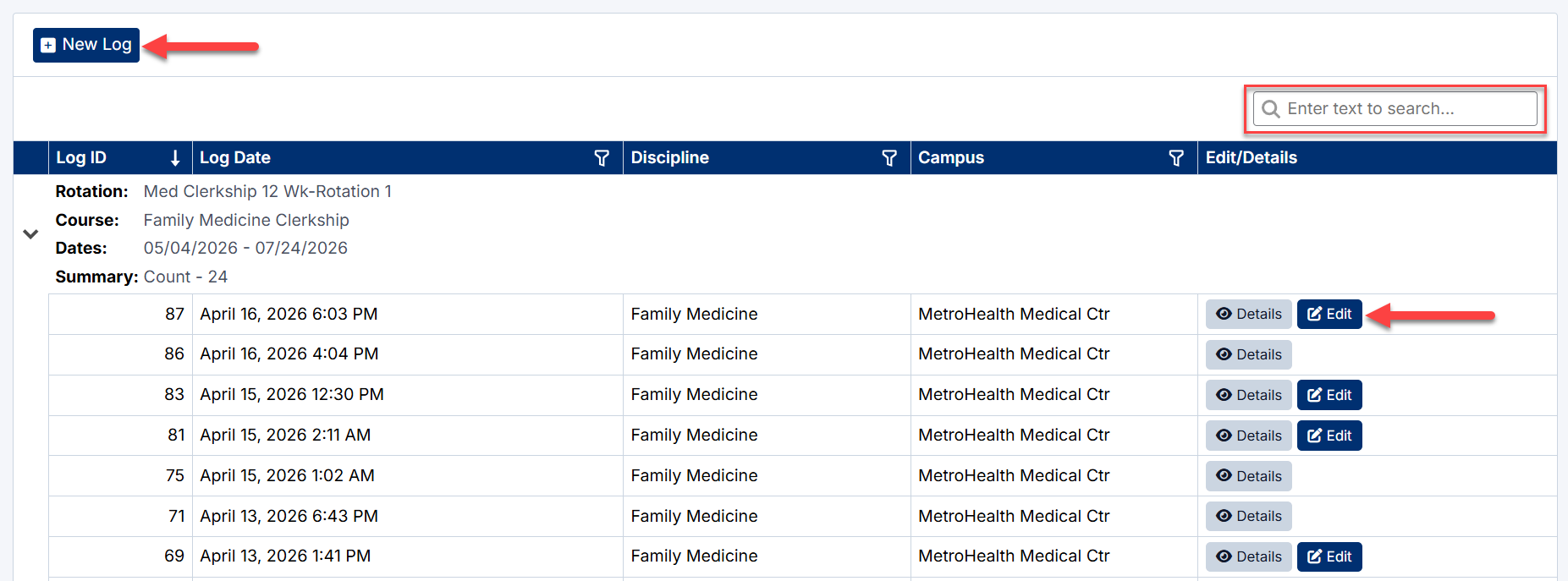
Patient Log Page Functions
What You Can Do on This Page
From the Patient Logs page, you can:
- Create a New Patient Log
Record a new patient encounter to capture your clinical experience. - View Existing Logs
Review previously recorded patient encounters in detail. - Edit Logs
Update logs that have not yet been finalized or submitted. - Track Your Activity
See how many patient logs you have completed for each rotation.
How Patient Logs Work
- You can log any patient encounter during your rotation.
- Each log contributes toward fulfilling your clinical condition requirements.
- Logs are organized by rotation, making it easy to manage your progress over time.
- Information captured includes:
- Encounter details
- Patient demographics
- Clinical conditions
- Observed activities and procedures
Page Layout Overview
- Logs are grouped by rotation and course
- Each group shows a summary count of logs completed
- Each log includes quick access to:
- Details (view full log)
- Edit (if still editable)
Next Steps
- To learn how to review a log, see Viewing a Patient Log
- To learn how to create a log, see Creating a Patient Log
Created with the Personal Edition of HelpNDoc: Make the switch to CHM with HelpNDoc's hassle-free WinHelp HLP to CHM conversion tool