Layout, Rotations & Discipline Tracking
Dashboard Overview
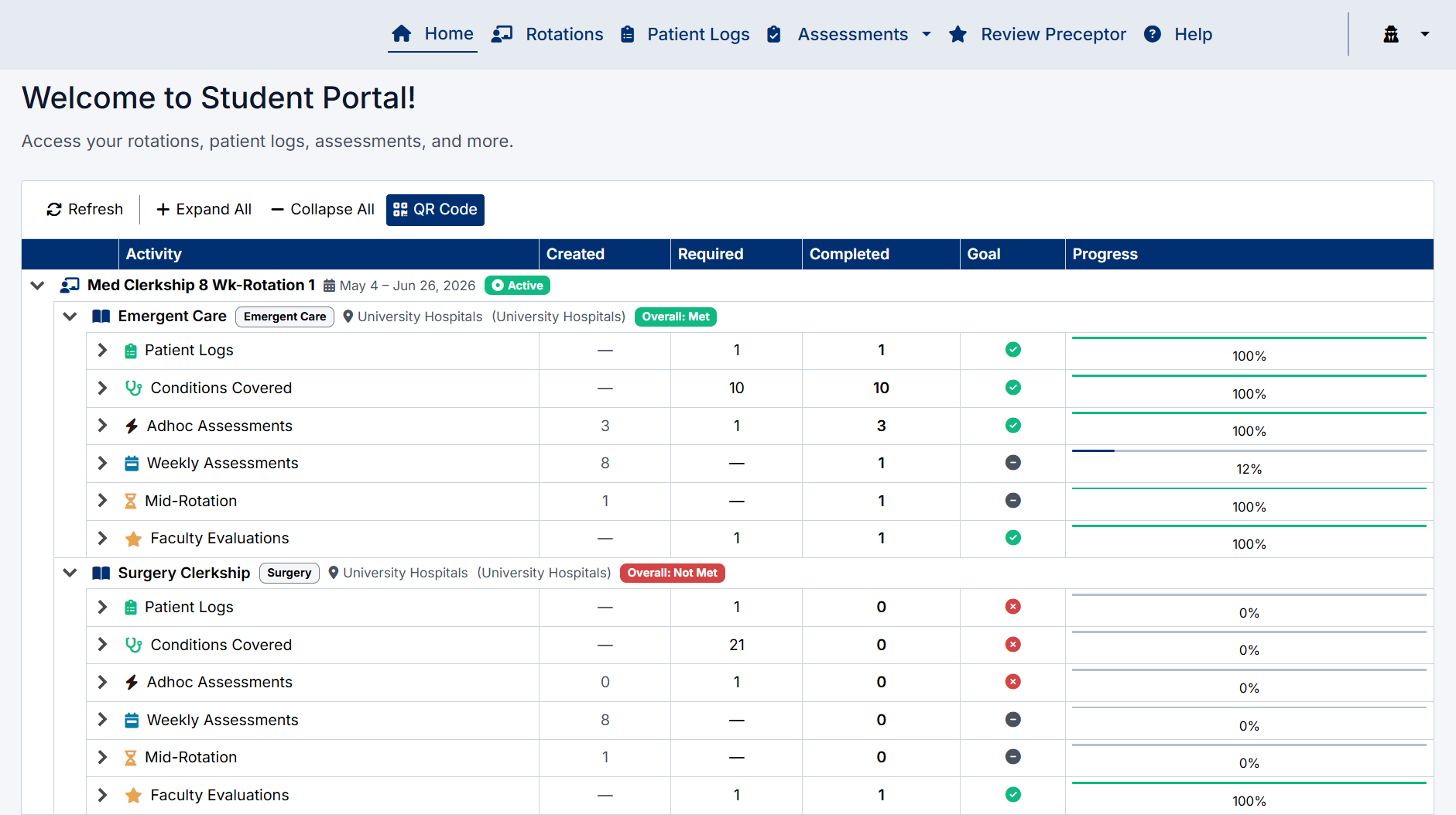
The Student Dashboard provides a centralized view of your rotations, requirements, assessments, and overall progress throughout your clinical training.
The dashboard is organized into expandable sections that allow you to quickly review your current progress and access related system functions.
Dashboard Layout
The dashboard uses a hierarchical grid layout consisting of:
- Rotation Rows
- Discipline Rows
- Requirement Rows
- Progress Information
Each section can be expanded or collapsed to display additional details.
Refreshing the Dashboard
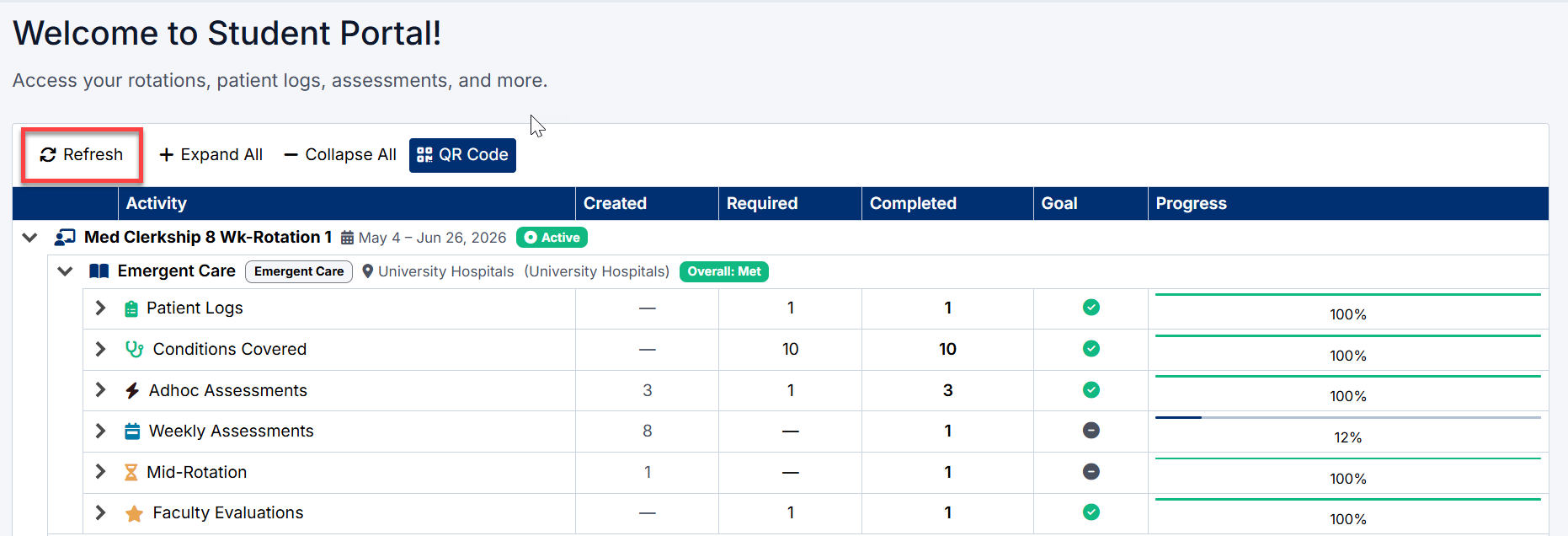
Select the Refresh button at the top of the dashboard to reload the latest progress and activity information.
This ensures the dashboard reflects:
- Newly submitted patient logs
- Completed assessments
- Updated progress totals
- Recently completed requirements
Expanding and Collapsing Sections
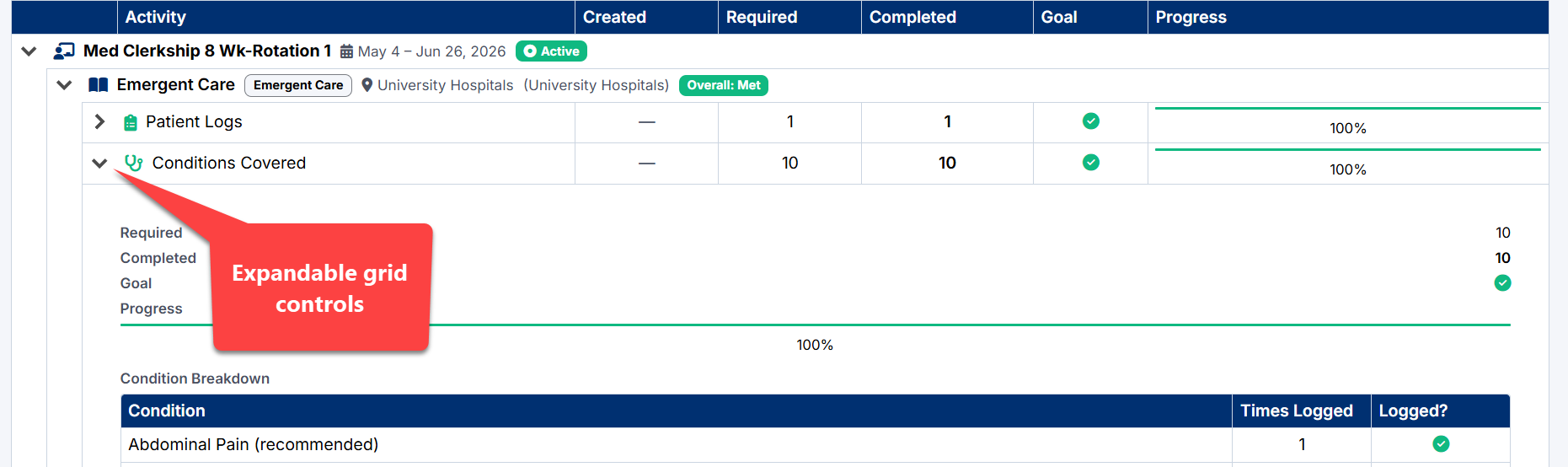
The dashboard supports expandable rows to help organize information.
Available controls include:
- Expand All — Opens all dashboard sections
- Collapse All — Closes all expanded sections
- Individual expand/collapse arrows beside each row
Students can expand:
- Rotations
- Disciplines
- Requirement categories
This allows you to focus only on the information you need.

Rotation Rows
Each rotation appears as a top-level row on the dashboard.
Rotation rows display:
- Rotation name
- Rotation dates
- Rotation status (Active or Upcoming)
Only active rotations will display live progress tracking information.

Expanding a Rotation
Select the expand arrow beside a rotation to display:
- Disciplines within the rotation
- Rotation requirements
- Progress tracking details
Discipline Rows
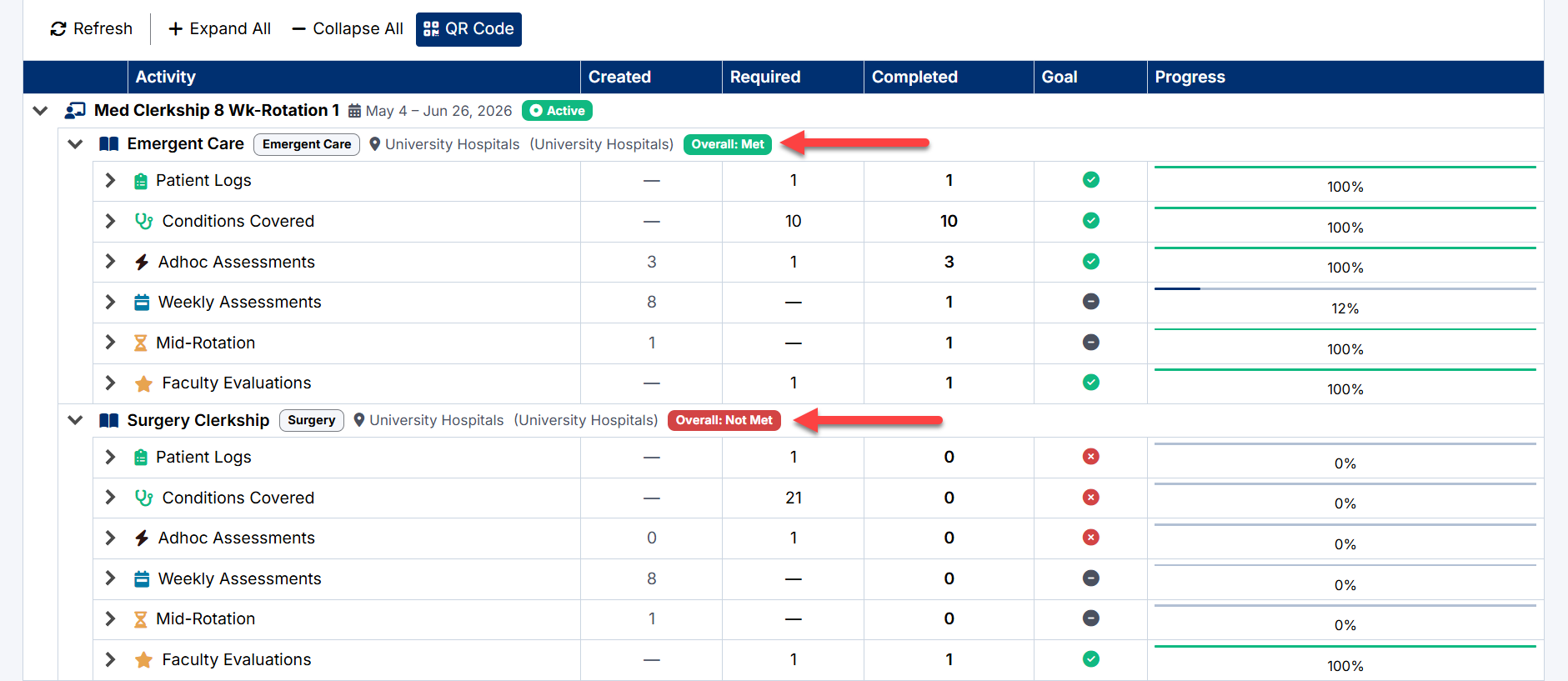
Within each rotation, disciplines are grouped into separate expandable sections.
Discipline rows display:
- Discipline name
- Campus/location information
- Overall requirement status
The Overall status indicates whether all required activities for that discipline have been completed.
Possible statuses include:
- Overall: Met
- Overall: Not Met
Requirement Rows
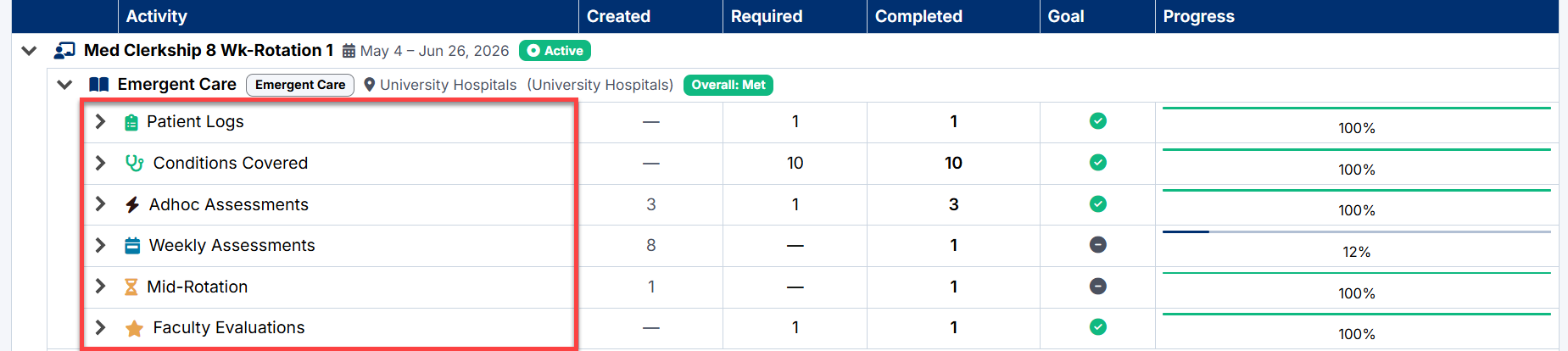
Each discipline contains individual requirement categories, including:
- Patient Logs
- Conditions Covered
- Adhoc Assessments
- Weekly Assessments
- Mid-Rotation
- Faculty Evaluations
Selecting a requirement heading opens the related page within the Student Portal.
Progress Tracking
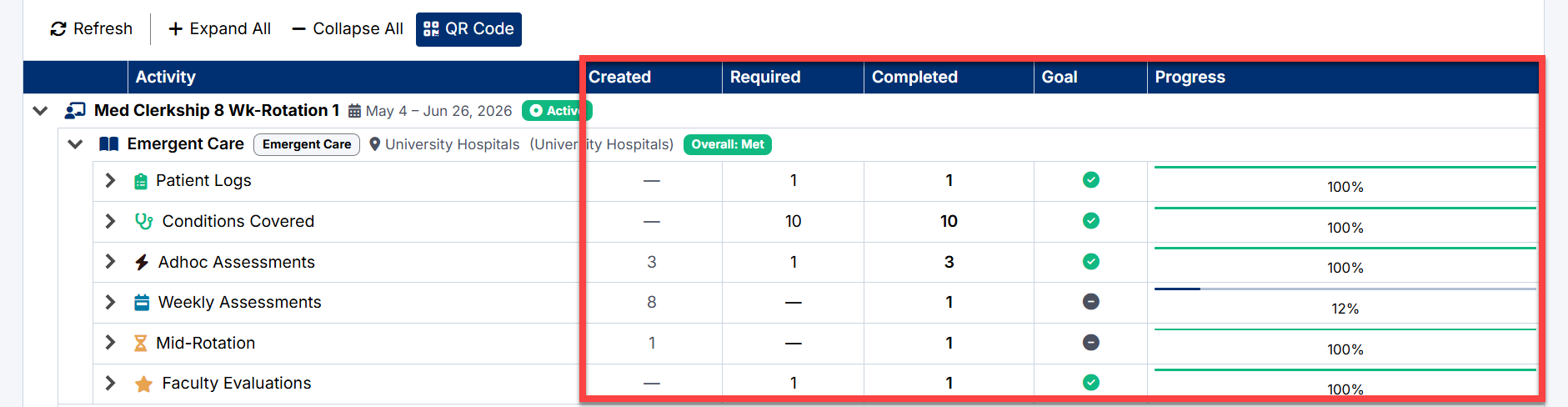
The dashboard tracks progress for each requirement category using:
- Created totals
- Required totals
- Completed totals
- Goal indicators
- Progress bars
Progress bars visually display completion percentages for each activity.
Goal Indicators
The Goal column displays whether a requirement has been successfully completed.
Indicators include:
- Green checkmark — Requirement met
- Red indicator — Requirement not met
- Neutral indicator — Requirement in progress or informational only
These indicators allow students to quickly identify outstanding requirements.Student Dashboard Overview
The Student Dashboard is your central hub for managing rotations, tracking clinical requirements, monitoring assessment progress, and accessing key areas of the Student Portal.
The dashboard provides a real-time overview of your progress across each rotation and discipline, helping you stay on track throughout your clerkships.
Opening Requirement Pages
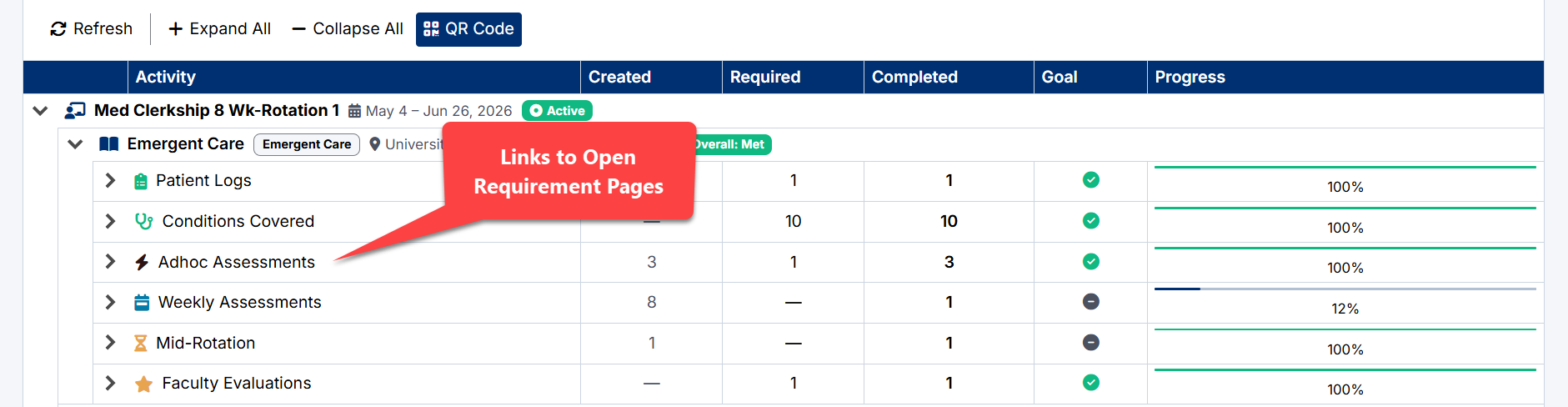
Selecting a requirement heading will open the related module page.
Examples:
- Selecting Adhoc Assessments opens the Adhoc Assessments page
- Selecting Weekly Assessments opens the Weekly Assessments page
- Selecting Patient Logs opens the Patient Logs page
This allows quick navigation directly from the dashboard.
Created with the Personal Edition of HelpNDoc: Free iPhone documentation generator