Student Dashboard Overview

Student Dashboard Overview
The Student Dashboard is your central hub for managing your clinical activities and tracking your progress throughout your rotation. From here, you can quickly access key areas of the system and monitor your completion status across all requirements.
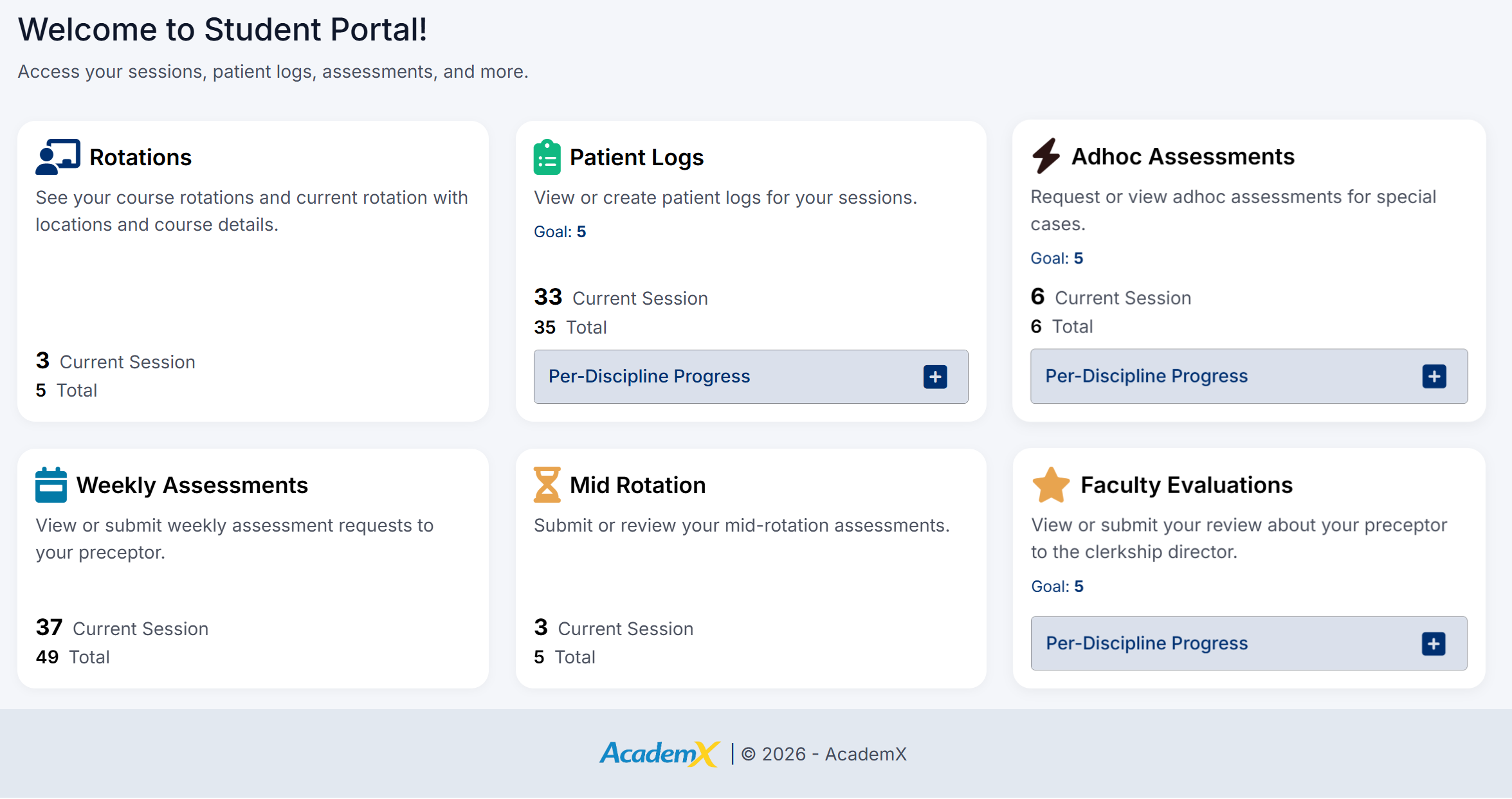
Student Portal Dashboard
Navigation Bar
At the top of the screen, the navigation bar provides quick access to key areas of the system:
- Home – Returns you to the dashboard
- Rotations – View your assigned rotations
- Patient Logs – Access and manage your patient logs
- Assessments – View and manage assessment requests
- Review Preceptor – Submit feedback about your preceptor

Student Portal Navigation Bar
Dashboard Tiles
The dashboard is organized into tiles, each representing a key area of the system:
- Rotations
View details of your current and upcoming rotations, including course information and locations. - Patient Logs
Create and manage your patient encounters. This tile also displays: - Your Goal for required logs
- The number of logs completed for the Current Session
- Your Total logs recorded
- Adhoc Assessments
Request or view ad-hoc assessments for specific patient encounters. This tile shows your progress against required goals. - Weekly Assessments
View and track your weekly assessment requests submitted to preceptors. - Mid Rotation
Access and complete your mid-rotation self-assessments. - Faculty Evaluations
Submit feedback about your preceptors for review by the clerkship director.
Tracking Your Progress
Each tile provides a quick summary of your activity and completion status, helping you stay on track with your requirements.
For applicable sections (such as Patient Logs, Adhoc Assessments, and Faculty Evaluations), you can expand the Per-Discipline Progress panel to view detailed progress by discipline.
Per-Discipline Progress
Click Per-Discipline Progress within a tile to expand a detailed view of your progress across different disciplines.
This section displays:
- A list of disciplines associated with your rotation
- A visual progress bar indicating your completion status
- A status indicator (e.g., Success) showing whether requirements have been met
This allows you to quickly identify:
- Which disciplines are complete
- Where additional logs or assessments may still be required
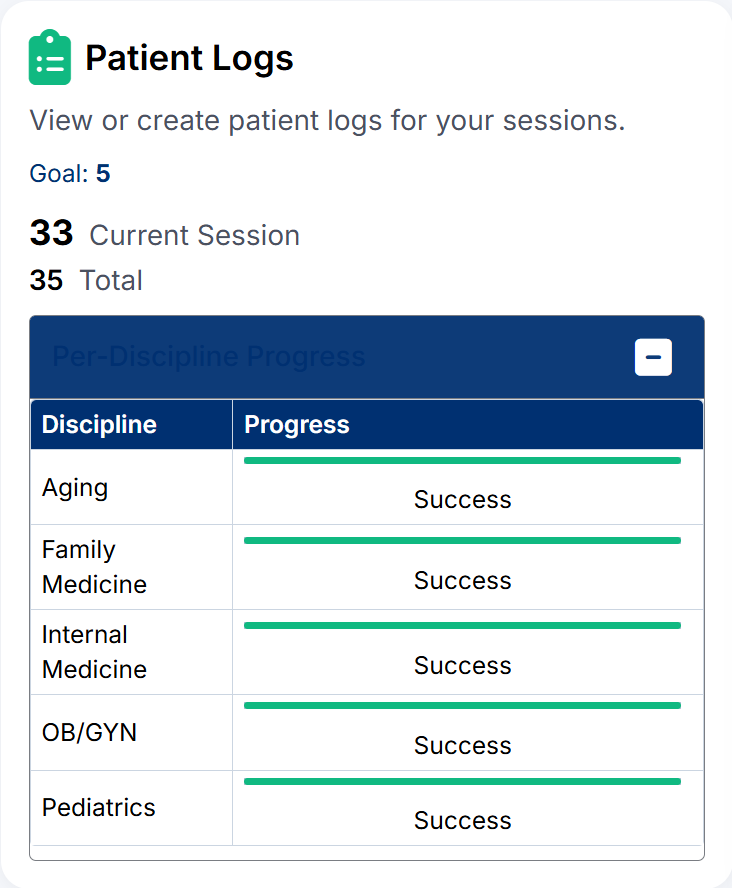
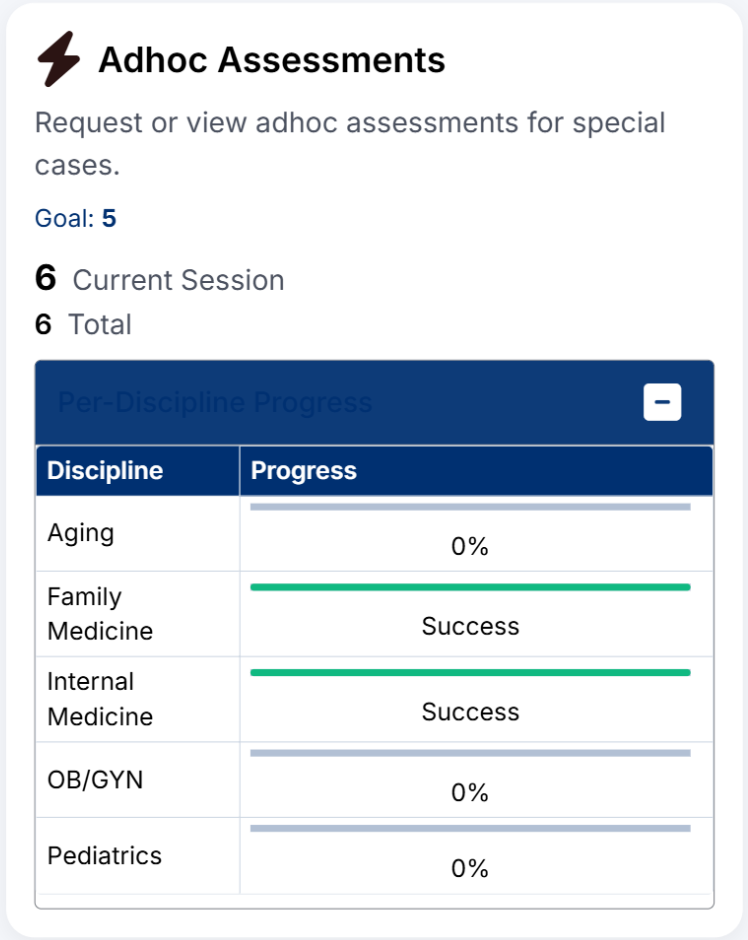
Student Portal Dashboard Tiles
Using the Dashboard Effectively
- Regularly review your dashboard to monitor your progress
- Use the progress indicators to ensure you are meeting required goals
- Expand discipline sections to identify any gaps in your activity
- Access each module directly from the dashboard tiles for quick navigation
Created with the Personal Edition of HelpNDoc: Free iPhone documentation generator