Accessing and Login

Accessing and Logging into the Student Portal
To access the Student Portal, you must sign in using your institutional email address and password.
The Student Portal provides access to:
- Your dashboard and rotation information
- Patient Logs
- Weekly and Ad-hoc Assessments
- Mid-Rotation Self-Assessments
- Progress tracking and learning resources
Step 1: Open the Student Portal
Open your web browser and navigate to the Student Portal URL provided by your institution or clerkship administrator.
Application URL: student.case.academx.ai
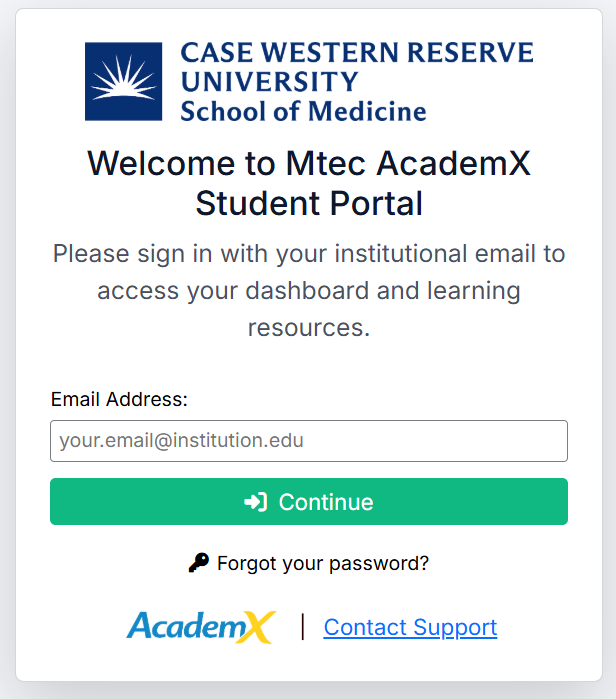
You will be presented with the Student Portal login screen.
Step 2: Enter Your Institutional Email Address
On the login screen:
- Enter your institutional email address.
- Click Continue.
The system will verify your account and move you to the password screen.
Step 3: Enter Your Password
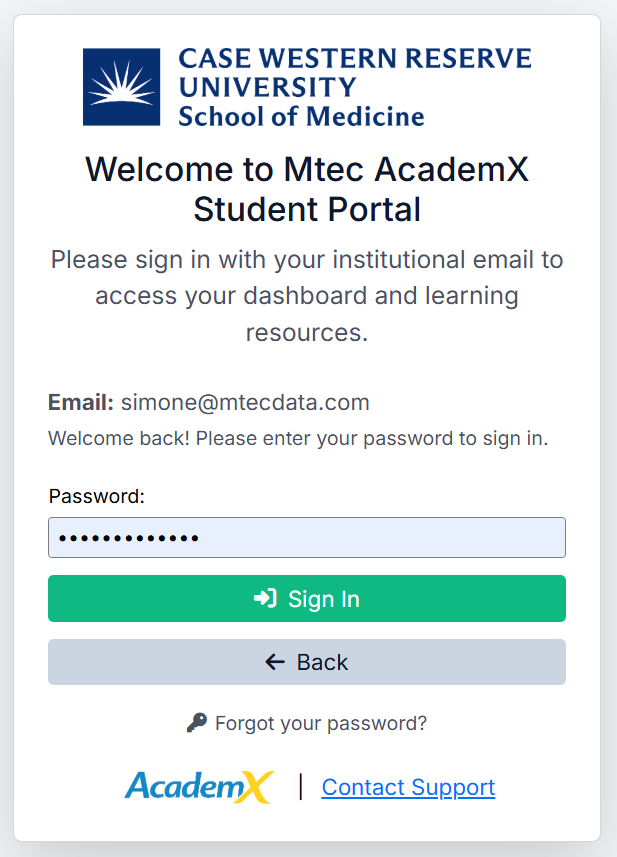
After your email address has been verified:
- Enter your password.
- Click Sign In.
If required, complete any additional authentication prompts configured by your institution.
Step 4: Access the Student Portal
Once signed in, you will be directed to the Student Portal dashboard.
From the dashboard, you can:
- View your rotations
- Log patient encounters
- Complete and request assessments
- Review feedback
- Track your progress throughout the academic year
Forgot Your Password?
If you cannot access your account:
- Click Forgot your password?
- Follow the password reset instructions provided by your institution.
If you continue to experience issues, contact support.
Support
For assistance accessing the Student Portal, contact:
casmeded@case.edu
Created with the Personal Edition of HelpNDoc: Make your documentation accessible on any device with HelpNDoc